Essential Guide to Wi-Fi Networks - How to Speed Up Your Connection
AUTHOR: Jon Welling
UPDATED: January 5, 2026
As smart home technology continues to gain popularity, more and more people are building their own home automation and security systems. One of the biggest concerns when building a smart home system deals with Wi-Fi connection speed.
Do smart home devices slow down Wi-Fi? Yes, smart home devices can slow down a Wi-Fi network. The reasons why this could happen include: a poorly configured device, a poorly tuned network, a home network that is using outdated technology, or a hacked device.
In this article, we are going to do deep dive into Wi-Fi internet connections. I’ll explain what Wi-Fi is, how it works, and how to install and configure your own home Wi-Fi network. We will also discuss what causes slow Wi-Fi and I’ll offer some tips on how to speed up your Wi-Fi connection.
There is a lot to cover, so let’s get started!
Smart Home Deals @ Amazon
What is Wi-Fi and How Does It Work?
Wi-Fi is an abbreviated term for “wireless fidelity”. Wi-Fi is a way to connect devices like your laptop, smartphone, and smart home devices, to a network. About 10-15 years ago it was commonly recommended that homeowners should install networking cable throughout their house for the best possible network connection. Needless to say, installing network cable through an entire house was too expensive and impractical for most. It was also impossible for most renters.
Eventually, Wi-Fi access points became cheap enough that manufacturers were able to build an all-in-one device for the average consumer to afford. These all-in-one devices included a router, a switch, and a wireless access point. Though these are technically three different devices that perform different tasks, we typically just refer to this all-in-one device as a “wireless router” in the consumer world.
Wi-Fi routers and wireless devices use radio signals to communicate with each other. Because of that, Wi-Fi routers and wireless devices experience all of the same issues that radio frequencies do. Anything from distance, to walls and trees, and even weather, can affect how well a wireless device is able to perform. Scientists and engineers have spent decades trying to figure out how to solve these problems.
Because of these issues, Wi-Fi has gone through a lot of revisions over the past 20 years. When you go to buy a new wireless router for your home, you’ll see weird phrases like Wireless N, Wireless AC, Triband, 5 GHz, etc. The world of Wi-Fi can be complicated! So much so that wireless technology falls under an international standard called 802.11. Manufacturers must adhere to these standards to make sure wireless devices can speak to each other.
Let’s go over some of the typical things you’ll see on a wireless router box.
Wireless Channels and Standards
2.4 GHz and 5 GHz
2.4 GHz and 5 GHz refer to the actual radio frequency itself. Radio frequencies work by fluctuating through the air in the shape of a wave. 2.4 GHz and 5 GHz refer to the amount of time that the radio signal fluctuates in a second. A gigahertz radio frequency will fluctuate more times than a megahertz radio frequency.
It’s important to note that the higher the frequency, the farther it can travel and the more data it can contain. A higher frequency can also be blocked a lot easier than a lower frequency. So a 5 GHz frequency can move more data and provide a faster connection in your house, but a 2.4 GHz frequency will work far better from room to room, around concrete, and through brick walls.
MIMO Technology
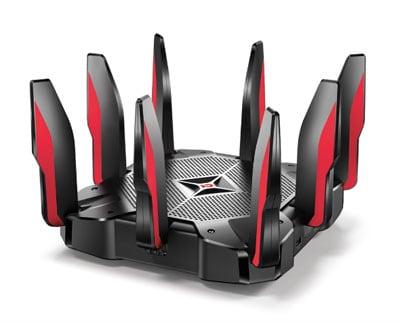
Image Courtesy of: TP-Link
Of course, the difference between 2.4 GHz and 5 GHz frequencies isn’t all that simple. Engineers came up with something called MIMO or multi-in multi-out. This technology uses multiple antennas on both the device and the wireless router to send and receive data which can potentially make the signal stronger and faster.
MIMO has become a standard technology in both wireless N and Wireless AC routers. This is why some of the wireless routers you see on store shelves look like fancy spiders or something from outer space. In general, a lot of antennas on a router is a good thing.
802.11A
802.11A is the original Wi-Fi standard, though it didn’t last long. This standard had a theoretical speed of 54mBs but didn’t travel far. It wasn’t good for more than 15 feet of travel. Most routers don’t support 802.11A anymore.
What is mBs? One thing I should clarify before we continue is the notation “mBs”. There is a lot of confusion out there regarding the acronyms for data transfer. There are two confusing acronyms for data transfer: mBs and MBs. mBs means megabits per second, while MBs means megabytes per second.
Both are correct terms of measuring data transfer, but typically mBs measures network throughput and MBs measures data storage. People usually just say MBs generically. MBs more accurately describes the storage transfer rate from hard drives. mBs is more accurate to measure network speed from your ISP or devices.
Now, with that out of the way, let’s continue with the wireless standards.
802.11B
802.11A was quickly deprecated for 802.11B. 802.11B had a much slower speed (11mBs) then 802.11A, but it also traveled a lot farther. 802.11B made it possible for a single router to cover access to most of a single-family home.
Though 802.11B has long since been replaced by newer standards, a lot of IoT and smart home devices still use 802.11B because wireless B radios can be made very small today and use very little power.
Some newer routers don’t support 802.11B. Comcast’s XB1 home router, for example, doesn’t. I own a Fitbit Aria scale and had to get rid of Comcast’s XB1 router because the smart scale couldn’t connect to it.
802.11G
802.11G brought the speed of 802.11A and the distance of 802.11B together. 802.11G was capable of achieving a theoretical limit of 54mBs while providing coverage to an entire house. 802.11G was a big step forward in Wi-Fi technology.
Wireless G isn’t really used anymore, but it is still widely supported because many older devices use it. Some IoT devices also use it because, like Wireless B, radios can be made that are tiny and use little power.
802.11N
802.11N improved on the speed of Wireless G. Depending on the Wireless N router and whether it supports 2.4 GHz or 5 GHz, Wireless N speeds could be hundreds of mBs.
MIMO was also introduced as a subset to the Wireless N spec with improved both speed and distance. Wireless N is widely supported today as not all devices support 802.11AC.
802.11AC
802.11AC is widely available today in all but the most budget wireless routers. Most consumer electronics and laptops also support Wireless AC. Wireless AC improved on both the speed and range of Wireless N.
Wireless AC advanced the MIMO technologies and introduced something called Beam Forming. Beam Forming allows Wireless AC routers to focus transmission to a specific device to increase speed and range.
802.16 WiMAX
Though WiMAX still has some application in commercial industries with very specific products, it’s mostly come and gone. WiMAX was made popular by Sprint and a few regional ISP’s, like Orange, to deliver a high-speed, wireless network.
WiMAX could deliver a potentially high-speed over a really far distance. For instance, a single cell phone tower equipped with a WiMAX radio could deliver a 5mBs internet speed to a house a mile away. WiMAX competed with LTE and eventually lost. Sprint was the only major carrier to support WiMAX, and its applications were too expensive and complicated to implement in something like a wireless router for the home.
Wi-Fi Hotspots
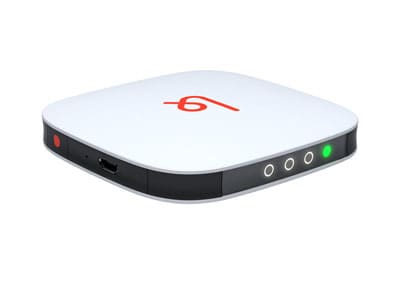
Image Courtesy of: Karma
Wi-Fi hotspots are interesting devices. They use multiple radio technologies in a small, battery operated package. Wi-Fi hotspots lived their hay day years ago, but have mostly been replaced by smartphones. Smartphones are capable of acting as a hotspot to local devices.
Hotspots work by creating a connection with a cellular network and then redistributing that connection via a Wi-Fi signal to local devices. Hotspots don’t have a built-in switch. Instead, they act as a mobile router. So, depending on the type of hotspot you have, your devices may not be able to talk to each other.
Hotspots tend to gain popularity for a short time when cellular carriers deploy new technologies. For instance, hotspots gained a lot of traction when HSPA+ (3.5G) was deployed, and again when LTE was deployed.
This happens because people want to take advantage of the faster cell network speeds, but it takes a while for cell phones to catch up. It’s far easier to manufacture a new hotspot than a new cell phone because the engineering for a hotspot is rather straightforward. Eventually, cell phones do catch up, and hotspots lose traction again.
How to Build Your Wireless Network
For the sake of keeping things easy, we are going to focus things on home networks.
How do home networks work? Let’s take a quick look at a diagram.
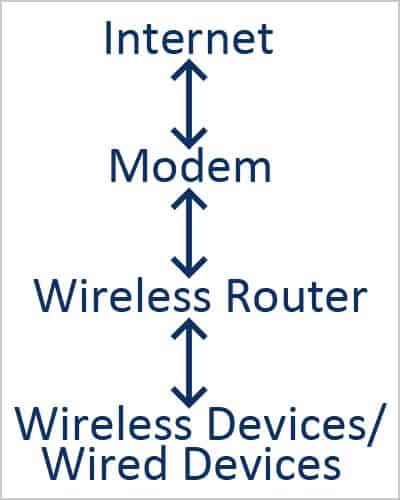
These are the four main components needed to create a wireless network. Device connectivity flows in the direction of the arrows shown in the diagram.
Data goes from your cellphone or laptop to your wireless router. Your wireless router will decide if that data needs to go to a different device on your network or to the internet. It will then route that data in the proper direction. If that data needs to go to the internet, then the router sends the data to the modem and then the modem sends the data off to the internet.
We are going to get a lot geekier here and dig a little deeper into the nuts and bolts of this setup.
I mentioned earlier that a wireless router is really three different devices in one: a wireless access point, a switch, and a router. Some wireless routers, like the one you would rent from your cable company, also has a modem built into it.
The wireless router is the heart of a home network. It also acts as a mini-server and a firewall in a sense. The router will assign an IP address to each wired or wireless device in the house. This IP address is unique. It’s how the router knows where to send information.
Wireless devices connect to the router via a wireless access point. A wireless access point simply translates a physical network connection to a wireless network connection.
The wireless access point then hands off data to the switch. The switch decides where information needs to go. It’s the traffic cop in the wireless router.
If data needs to go to the internet, the switch sends data to the router. A router’s sole job is to connect two different networks together. A home router will use something called NAT (Network Address Translation) to keep track of which device is asking for what data. Then it sends data to the outside world making all the data from your house look like it came from a single device. This serves two purposes. It helps consolidate globally used IP addresses (because we only have so many) and acts as a security mechanism.
The modem also acts as a router. You could argue that it doesn’t make sense to have a second router, and to some extent, it is weird, but nonetheless, necessary. The wireless router in your home provides those NAT services and also acts as a generalized router that connects via ethernet using the TCP/IP protocol to another network. The modem is a specialized router that takes traffic and converts it to another type of network, thus transferring traffic back and forth between your home network and the outside world.
Believe it or not, that was a very simplified, dumbed down explanation of the process. Entire college degrees and certifications are designed around understanding these concepts. Hopefully the explanation I gave here was easy for you to digest.
Wireless Network Security
Wireless networks can be thought of as a bunch of electronic devices shouting loudly at each other, trying to communicate. It’s not any different than you and a friend yelling at each other down an aisle, at the grocery store. The problem with that is that everyone around you can hear what you’re saying.
That’s the whole point and reason for wireless network security. It allows your computer to yell things at your wireless router in a secret code that no one else around can understand.
There are various versions of wireless network security. There’s WEP, WPA, and WPA2. WPA and WPA2 have subversions as well.
WEP and WPA have already been deprecated. Both of those versions were super easy to hack. It once took me literally 5 minutes to break my neighbors WEP encrypted network connection.
WPA2 is the standard form of wireless security today and is implemented in various ways. Wireless router manufacturers have attempted to make it easier to connect devices to a WPA2 encrypted wireless network. The best example is that WPS (Wi-Fi Protected Setup) button you press on your wireless router to connect a device to it. That button alone has its security issues.
I don’t want to dig too deep on this subject, so I'll leave it at this brief overview.
The best advice I can give regarding wireless network security is to not use that WPS button (if fact, you should disable it, if possible), change your wireless network password to something long, and make sure you are using WPA2.
What Causes Slow Wi-Fi
Outside of using older equipment, slow Wi-Fi is caused primarily by three things:
1. Distance
2. Blockage
3. Congestion
Distance
Your wireless network signal can only travel so far away. The farther you are away from your wireless router the slower your Wi-Fi speed will be. Likewise, you can’t be too close. It’s okay to be in the same room, but don’t think that sitting your wireless router right next to your easy chair will give you a fast Wi-Fi signal. Wi-Fi signals become very inefficient if the distance is too short. So don’t sit right next to your router either.
Blockage
Just like walls dampen the sound of your voice when you yell, they also dampen Wi-Fi signals. Depending on the material of the blockage and what type of signal you are sending, a Wi-Fi signal can be stopped dead in its tracks by a wall. Typically, the denser the object the more it’s going to slow down a signal.
Congestion
Congestion is a more complicated topic to cover. Congestion can mean the amount of data being sent over your network at one time. Or, congestion can mean the number of devices connected to the wireless network. Congestion can also mean how flooded the airwaves are around you. A person living in a rural area could actually get better Wi-Fi signals than someone in the city, just because the airwaves are less flooded with other things.
So, how does this relate to smart home systems? Smart home devices, for a plethora of reasons, can cause a wireless network to slow down. The most common reason for this is congestion. Either there are a lot of devices on the network causing a flood of traffic or a single device has been hacked sending out a ton of data.
Another reason could be that a smart home device is forcing a wireless router to use outdated technology to connect, thereby forcing other devices to slow down their connections in the process.
How to Speed Up Your Wi-Fi Network
Here are 8 simple things you can do that will help boost your Wi-Fi speed:
1. Check Your Channel
Wireless networks operate on specific channels. If everyone around you uses the same wireless channel that is going to cause network congestion. Check what channels are being used around you and configure your wireless router to use a different channel.
There are apps available for your smartphone to figure out this information. Likewise, check the instruction manual for your router to change the wireless channel it uses.
2. Separate the 2.4 GHz and 5 GHz Frequencies
Don’t use the same network name (SSID) for your 2.4 GHz and 5 GHz networks. Keep them separate. Keep your smart home devices and low-end devices on the 2.4 GHz connection. Keep laptops, cellphone, set-top-boxes (Roku player, Apple TV), etc. on the 5 GHz connection.
This will prevent the slow devices from slowing down the Wi-Fi connection for all other devices.
3. Invest In a Good Router
The most common mistake people make is purchasing the cheapest router they can. Don’t do this. A good router is more expensive for a reason. It has hardware that is far more capable of processing the data it receives.
Likewise, good routers have stronger radios.
With that said, you don’t need the most expensive router either. More expensive routers have features you may not need. For the average family in a 1,500 square foot home, plan on spending $200-$250 on a router.
4. Find the Best Placement for Your Router
Place your router in the middle of your home, in an open area, with the antennas pointed up. This is important. Don’t make the router have to fight to distribute a signal by putting it in a cabinet or a closet. Placing the router in the middle of your home will allow it to distribute even coverage everywhere throughout the home for an even signal.
Wireless routers distribute their wireless signal in an egg-like shape. If you move the antennas it can change the position of that egg shape. If all the antennas aren’t pointed in the same direction that can affect MIMO performance. So, keep the antennas pointed straight up.
5. Enable QOS
QOS stands for quality of services. Quality of services rules helps contain the congestion on your network. It also prioritizes traffic based on need. So your movies and video games will play better while your smart home devices will move a little slower. You want this. It’s a good thing.
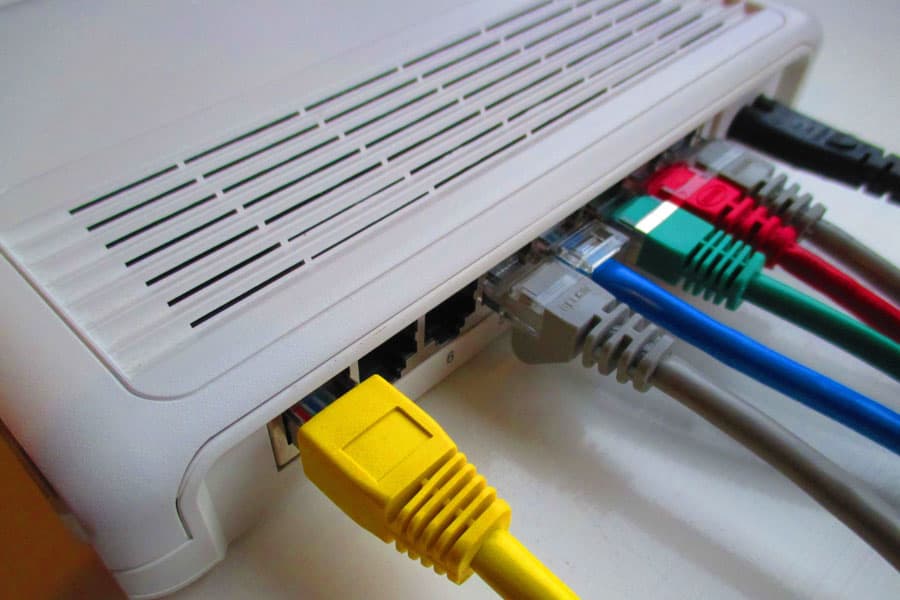
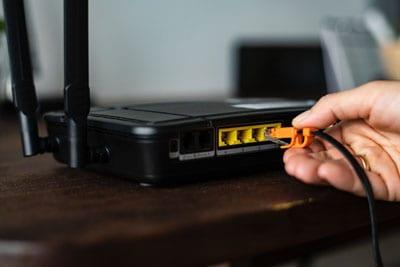
6. Check your Connections
Make sure your wired connections are tight. They can wiggle lose over time.
7. Check for Updates
Your wireless router needs to be updated occasionally. These updates can provide performance enhancements and security patches.
8. Reboot
The old adage ‘turn it off and back on again’ works for a reason. Do that. Every once in a while, reboot your wireless router.
I hope the information in this article gives you a better understanding of home Wi-Fi internet connections and how you can set up your home network for optimal performance. Wi-Fi speed and performance is an important element to consider when building a home automation and security system.
Recommended Products
About the Author